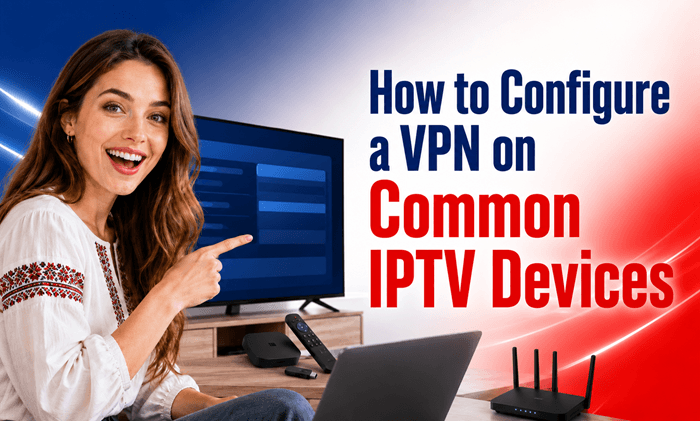
Setting up a VPN on your IPTV device means either installing a VPN app directly on the device or, when no app exists, routing the device through a VPN-enabled router. The right method depends entirely on what hardware you own. This guide walks through the exact setup for Firesticks, Android TV boxes, smart TVs, MAG boxes, and Apple TV, plus the settings that keep your streams private and buffer-free.
Best IPTV Compare 2026
Independently tested & ranked — updated this month






Do You Need a VPN on the Device or the Router?
A VPN encrypts your internet traffic and hides your real IP address, which stops your internet provider from seeing or throttling your IPTV activity and helps you access channels blocked in your region.
You have two broad choices. Install the VPN directly on the streaming device if it supports apps, or install the VPN on your router so every device on your network is covered at once. Device-level setup is faster and lets you switch servers easily. Router-level setup is the only option for hardware that cannot run VPN apps, and it protects everything in one step.
Which IPTV Devices Support a VPN App vs. Which Need a Workaround
Not every device can run a VPN application. The table below shows the recommended method for each common IPTV device.
| Device | Native VPN App? | Recommended Method | Notes |
| Amazon Firestick / Fire TV | Yes | Appstore app or sideloaded APK | Easiest overall setup |
| Android TV box | Yes | Google Play app or APK | Wide app support |
| Samsung (Tizen) smart TV | No | Router or Wi-Fi hotspot | No VPN apps available |
| LG (webOS) smart TV | No | Router or Wi-Fi hotspot | SmartDNS unblocks but does not encrypt |
| MAG / Enigma2 box | No | Router | Configure at network level |
| Apple TV | Yes (tvOS 17+) | App Store app or router | Older models need router |
How to Set Up a VPN on a Firestick / Fire TV
The Firestick is the most VPN-friendly IPTV device because most providers publish a dedicated Fire TV app.
Installing from the Amazon Appstore
From the Fire TV home screen, open Find, then Search, and type the name of your VPN provider. Select the app, download it, then open it and sign in with your account. When prompted, allow the app to configure network settings, choose a server, and connect.
Sideloading the APK with Downloader (when no native app exists)
If your provider is not in the Appstore, you can sideload the Android installer file.
- Go to Settings > My Fire TV > Developer Options and enable Apps from Unknown Sources.
- Install the free Downloader app from the Appstore.
- Open Downloader, enter the APK link from your VPN provider’s website, and install the file.
- Launch the app, sign in, and connect.
How to Set Up a VPN on an Android TV Box
Android TV boxes support VPN apps through the Play Store or through manual installation.
Installing via Google Play Store
Open the Google Play Store on the box, search for your VPN provider, and select Install. Open the app, log in, pick a server, and connect. This is the simplest route and keeps the app updated automatically.
Manually Installing an APK
If the app is missing from the Play Store on your box, download the APK from the provider’s official site using a file manager or browser, enable installs from unknown sources in the security settings, then open the file to install it. Sign in and connect as normal.
How to Set Up a VPN on Devices Without VPN Support (Smart TVs, MAG, Enigma2)
Samsung, LG, MAG, and Enigma2 devices cannot run VPN apps, so you protect them at the network level.
Installing the VPN on Your Router
Log in to your router’s admin panel by typing its IP address into a browser. Find the VPN section, then enter the OpenVPN or WireGuard configuration details supplied by your VPN provider. Once connected, every device on the network, including your TV, is routed through the VPN. This requires a router that supports VPN client mode, such as many Asus, DD-WRT, or Tomato models.
Sharing a VPN Connection via Hotspot (PC/phone)
If your router cannot run a VPN, connect the VPN on a Windows PC or phone, then share that protected connection as a Wi-Fi hotspot. Connect your smart TV or IPTV box to that hotspot, and its traffic flows through the VPN.
Note that SmartDNS is a separate feature offered by some providers. It helps unblock regional content but does not encrypt your traffic, so it is not a privacy substitute for a full VPN connection.
How to Set Up a VPN on Apple TV
On Apple TV models running tvOS 17 or later, open the App Store, search for your VPN provider, install the app, sign in, and connect. Older Apple TV models do not support VPN apps, so route them through a VPN-enabled router or a shared hotspot instead.
Best VPN Settings for IPTV
The right settings keep streams fast and secure.
- Protocol: Choose WireGuard or Lightway for the best speed. Switch to OpenVPN only if you need maximum reliability on an unstable connection.
- Kill switch: Turn it on so your real IP is never exposed if the VPN drops.
- Split tunneling: Route only your IPTV app through the VPN so other devices and apps run at full speed.
- Server choice: Connect to a nearby, low-load server to reduce latency. A closer server almost always streams more smoothly than a distant one.
Fixing Common Problems: Buffering, IPTV Not Loading, or VPN Disconnecting
If IPTV buffers or fails after connecting, work through these fixes in order.
- Connect the VPN first, then launch the IPTV app or reload the playlist so it detects the new IP.
- Switch to a different or less busy server if one node is slow.
- Use an Ethernet cable instead of Wi-Fi for a more stable connection.
- Test whether buffering also happens with the VPN off. If it does, the issue is your IPTV provider, not the VPN.
- Lower the stream resolution if your connection speed is limited.
Is It Legal to Use a VPN with IPTV?
Using a VPN is legal in most countries and is a normal privacy tool. A VPN does not, however, make unlicensed or pirated streams legal. To stay on the right side of the law, use a VPN alongside legitimate, properly licensed IPTV services.
Conclusion
The best way to configure a VPN on your IPTV device depends on whether the device can run apps. Firesticks, Android TV boxes, and newer Apple TVs take a direct app install, while Samsung, LG, MAG, and Enigma2 devices need a router or hotspot setup. Connect the VPN before streaming, enable the kill switch, and pick a nearby server, and you will get private, unblocked IPTV with minimal buffering.
FAQ
Do I need a VPN on every IPTV device or just my router?
You need it on only one point. Install the VPN on each device individually, or set it up once on your router to cover every device on the network automatically.
Which VPN protocol is best for IPTV streaming?
WireGuard or Lightway is best for IPTV because they offer the fastest speeds with strong encryption. Use OpenVPN only when you need extra reliability on an unstable connection.
Why does my IPTV buffer or stop working when the VPN is on?
IPTV buffers when the VPN server is overloaded or far away. Switch to a nearby, less busy server, connect the VPN before opening the app, and use Ethernet for a stable connection.
How do I use a VPN on a smart TV that has no VPN app?
Install the VPN on your router or share a VPN-protected hotspot from a PC or phone, then connect the smart TV to that network. Samsung and LG TVs cannot run VPN apps directly.
Which VPN server should I connect to for IPTV?
Connect to a nearby, low-load server for the smoothest IPTV streaming. Closer servers reduce latency and buffering, while distant servers add delay and slow performance.
Does a VPN hide IPTV streaming from my internet provider?
Yes. A VPN encrypts your traffic and hides your IP address, so your internet provider cannot see your IPTV activity or throttle your streaming speeds.